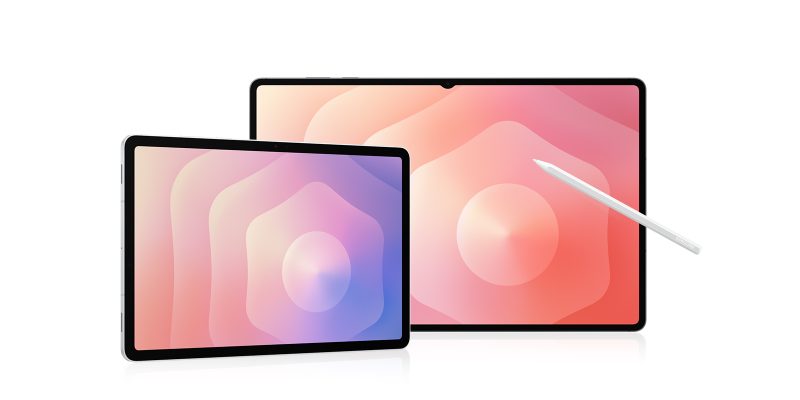
Have you ever lent your Android tablet to a friend, family member, or colleague, and wondered if your browsing history is still accessible? Whether for privacy concerns or simply to tidy up, deleting Google history can be a prudent move. But how exactly do you proceed? Let yourself be guided through this task, and discover how to secure your privacy in a few simple steps.
Summary in 3 points
- Deleting Google history helps protect your privacy.
- The process is simple and quick on an Android tablet.
- It is also possible to manage your privacy settings for increased control.
Access Google app settings
To delete Google history on an Android tablet, the first step is to open the Google app. Once the app is launched, look for the profile icon at the top right of the screen. By tapping on it, you will access a dropdown menu where you can select “Manage your Google Account.”
In this space, you will find several options to customize your user experience. For our purpose, head to the “Data and privacy” tab. This allows you to manage the information Google keeps about you, including your search activity.
Delete browsing history
Once in the “Data and privacy” settings, scroll down to the “Activity history” section. Here, you will find a section dedicated to Web and app activity. By selecting this option, you will access a detailed history of your past searches.
To delete this history, click on “Manage history.” You will then have the option to delete specific items or remove the entire history. Google also offers tools to automate this task, such as automatically deleting data after a certain period.
Configure privacy settings
Beyond simply deleting history, it may be wise to explore the different privacy settings offered by Google. By returning to the main page of your account, you will find a section dedicated to “Activity controls.”
Here, you can disable the recording of Web and app activity if you prefer not to keep this data in the future. This action will not affect the performance of your searches but will offer you an additional level of security.
Delete cookies and other browsing data
Deleting search history is just one part of the process to protect your privacy. Cookies and other website data can also reveal information about your browsing habits. To delete them, open the browser used on your tablet, usually Google Chrome.
In Google Chrome, tap on the three vertical dots at the top right, then select “Settings.” In the “Privacy and security” section, you will find the option “Clear browsing data.” By clicking on it, you can choose to delete cookies, cached images, and more.
Google synchronization issues on Android
Besides managing history, another common issue faced by Android tablet users is the synchronization of Google data. Sometimes, your contacts, emails, or calendar events do not sync properly. To resolve this issue, first ensure that automatic synchronization is enabled in your Google account settings. If that is not enough, try removing the affected account from your device and then adding it back. These simple steps can often resolve synchronization issues and ensure that all your data is up to date.