
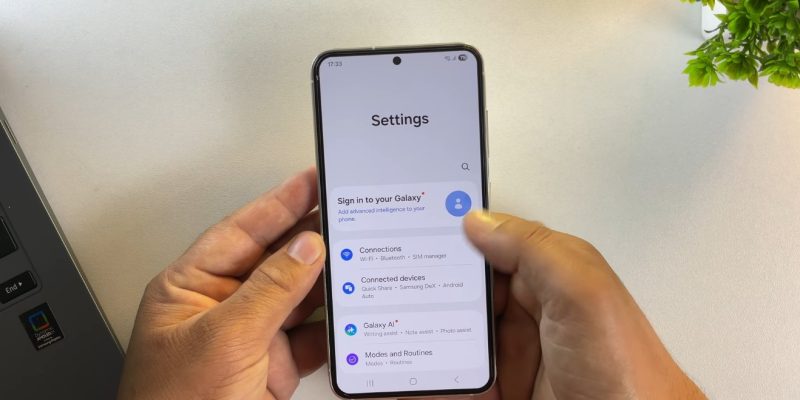
Smartphone updates are supposed to improve performance, fix vulnerabilities, or add new features. However, sometimes a new firmware version causes unexpected bugs: apps crashing, overheating, battery issues, or slowdowns. In these situations, performing a rollback to revert to a previous version becomes a valuable tool to restore the device’s stability. This technical process may seem complex, but when well-prepared, it allows continued use of a phone without suffering the inconveniences of faulty firmware.
How to spot that your firmware has become problematic?
It is essential to quickly detect signs of unstable firmware before considering a rollback. Users often notice:
- Frequent or random reboots, sometimes in a loop.
- Overall slowness affecting app opening and execution of common tasks.
- Network malfunctions, with unstable Wi-Fi or Bluetooth.
- Abnormally reduced battery life despite identical usage habits.
- Notifications or services no longer responding correctly.
Identifying these symptoms allows for informed decisions and limits the risk of data loss. In most cases, a rollback restores the smartphone’s fluidity and stability while preserving personal information if the procedure is done correctly.
Preparing your smartphone before initiating a rollback
A poorly prepared rollback can worsen problems. Data security and backup are priorities.
- Complete backup: photos, videos, contacts, messages, and apps should be copied to an external storage or secure cloud. Without this step, the risk of permanent loss is high.
- Obtain the official firmware: download the previous version only from the manufacturer’s site or certified sources. Modified or pirated firmware can irreversibly damage the phone.
- Install necessary tools: depending on the brand, software like Odin for Samsung, Mi Flash for Xiaomi, or ADB/fastboot for generic Android are essential.
- Check the battery: the phone should be charged to at least 50-60% to avoid any shutdown during installation.
These steps ensure a secure rollback and limit the risk of bricking. They are the foundation for a smooth and effective procedure.
READ ALSO
Steps to execute a rollback on different smartphones
Samsung: Odin and download mode
For Samsung devices, Odin remains the standard tool. After downloading the official firmware:
- Put the phone in download mode by pressing the appropriate keys according to the model.
- Connect the device to the computer and launch Odin.
- Select the firmware and start the flash.
- Once completed, check that all main features work correctly.
Samsung often offers several official versions for each model, allowing a return to stable firmware without excessive data loss.
Xiaomi: Mi Flash and fastboot
For Xiaomi, the rollback is generally done via Mi Flash:
- Activate fastboot mode by turning off the phone and combining specific keys.
- Connect the device to a PC and select the firmware corresponding to the desired version.
- Start the flash and wait until the smartphone fully restarts.
Xiaomi also provides guides to restore a blocked device, securing the process for informed users.
Google Pixel and other Android: ADB and fastboot
For Google Pixel devices and some Android models:
- Activate bootloader mode.
- Use ADB/fastboot commands to install the previous firmware.
- Confirm that the smartphone starts correctly and that personal data is intact.
This method requires good command mastery and particular attention to compatible versions to avoid any incompatibility.
Risks and precautions before a rollback
Even though rollback can solve many problems, some precautions are essential:
- The latest apps may not be compatible with an earlier firmware, causing crashes.
- Reverting to an older version may expose the phone to security vulnerabilities already fixed in later updates.
- On some models, performing a rollback voids the manufacturer’s warranty.
It is therefore recommended to limit this practice to situations where malfunctions severely disrupt daily use and always prioritize official firmware.
Tips for securing a rollback without compromising the smartphone
To minimize risks:
- Strictly adhere to versions: install only the exact version intended for your model and region.
- Do not interrupt the flash: any interruption can cause an irreversible brick.
- Check specialized forums and guides: communities like XDA Developers offer precise instructions for each model.
- Test main features after the rollback: network, Bluetooth, Wi-Fi, calls, and battery life.
By applying these recommendations, rollback becomes a reliable tool to restore a smartphone’s stability, even after faulty firmware.
Optimizing the future after a rollback
Once the firmware is restored:
- Install critical updates one by one, monitoring the impact on the system.
- Avoid beta or unofficial updates, which are often sources of bugs.
- Maintain regular backups to limit risks in case of a new failure.
These practices allow enjoying a stable and functional device in the long term while reducing stress related to faulty updates.





