
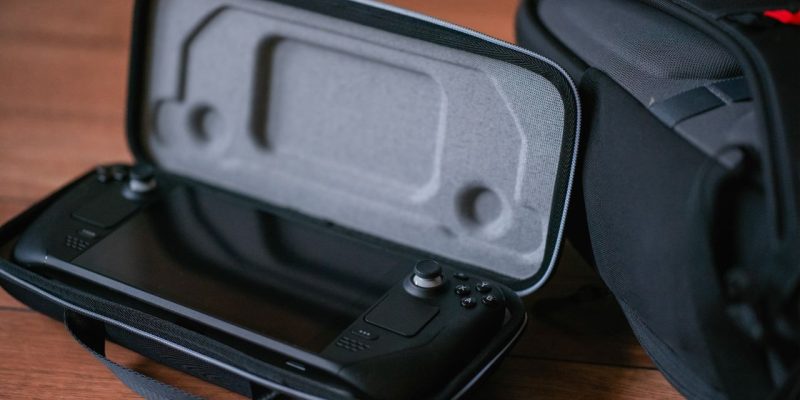
Valve’s Steam Deck is a revolutionary handheld console that allows you to play your PC games wherever you go. However, sometimes you might want to play on a big screen to enjoy a more immersive experience or simply to share your games with others. Fortunately, it is relatively easy to connect your Steam Deck to an external screen, whether it’s a TV, monitor, or projector.
Step 1: Check the available ports on your Steam Deck
Before connecting your Steam Deck to an external screen, it’s important to know the connection options available on your device. The Steam Deck offers several ways to connect an external screen, including via the USB-C port.
Available ports on the Steam Deck:
- USB-C Port: This is the main port for video output and can be used to connect the Steam Deck to an external screen. This port supports DisplayPort connection via a USB-C to HDMI, DisplayPort, or VGA cable.
- Docking Station: Valve has launched an official dock for the Steam Deck, which makes it easier to connect to an external screen and offers additional options like Ethernet network connection and the use of USB peripherals.
Step 2: Use a USB-C to HDMI adapter
One of the simplest solutions to connect your Steam Deck to an external screen is to use a USB-C to HDMI adapter. This type of connection is ideal if you want to play on a TV or monitor equipped with an HDMI port.
Steps to connect via USB-C to HDMI:
- Get a USB-C to HDMI adapter: You can easily find one online or in electronics specialty stores. Make sure the adapter supports 1080p or 4K resolution (depending on your screen) for optimal image quality.
- Plug the adapter into your Steam Deck: Connect the USB-C end of the adapter to the USB-C port on your Steam Deck.
- Connect the other side to the external screen: Plug the HDMI cable into your TV or monitor. Make sure your screen is set to the correct input channel (HDMI).
- Configure the display on your Steam Deck: Once the connection is established, your Steam Deck should automatically detect the external screen. If not, you can adjust the display settings in the Steam settings.
Advantages of this method:
- Easy to use and generally affordable.
- Compatible with almost all HDMI external screens.
Step 3: Use the official Steam Deck docking station
If you prefer a more elegant and convenient solution, you can opt for the official Steam Deck docking station (similar to a Switch dock). This dock not only allows you to connect your Steam Deck to an external screen, but it also offers other advantages like managing USB peripherals, network connection, and using multiple HDMI ports.
Steps to connect via the official dock:
- Connect the Steam Deck to the dock: Simply insert your Steam Deck into the dock, which is designed to fit perfectly with the device’s USB-C port.
- Connect the dock to the screen: Use the HDMI cable provided with the dock to connect the dock’s HDMI port to your TV or monitor.
- Connect additional peripherals (optional): You can also connect a controller, keyboard, mouse, or other USB peripherals directly to the back of the dock.
- Turn on the external screen: When you turn on the Steam Deck and the external screen, the game should automatically be redirected to the big screen.
Advantages of the Steam Deck docking station:
- Allows the use of external peripherals.
- Offers better cable management and space-saving.
- Facilitates access to additional features, like Ethernet connection.
Step 4: Configure display settings
Once you’ve connected your Steam Deck to an external screen, you may need to adjust the display settings to optimize the gaming experience. Depending on your screen, you may need to change the resolution, refresh rate, or display orientation.
Settings to adjust:
- Access the screen settings: On your Steam Deck, go to Settings and then select Display.
- Adjust the resolution: Choose a resolution that matches your external screen. For example, if you’re playing on a 4K screen, choose the 3840×2160 resolution. If you’re using a Full HD screen, 1920×1080 will suffice.
- Choose the display mode: You can also choose to use your external screen in mirror mode (replicating the Steam Deck’s display) or in extended mode (like a second monitor).
Step 5: Use remote controls
If you’re playing on a big screen with your Steam Deck connected, you’ll probably want to use remote controls. If you don’t want to play from the Steam Deck’s touchscreen, you can connect game controllers or use Steam’s Big Picture mode.
How to use controls:
- Connect a Bluetooth controller: You can connect a wireless controller to your Steam Deck via Bluetooth, whether it’s an Xbox, PlayStation, or even a PC controller.
- Use the Steam Remote Play feature: If you have another PC or device with Steam, you can stream your Steam games to that device while playing with a controller connected to your Steam Deck.





