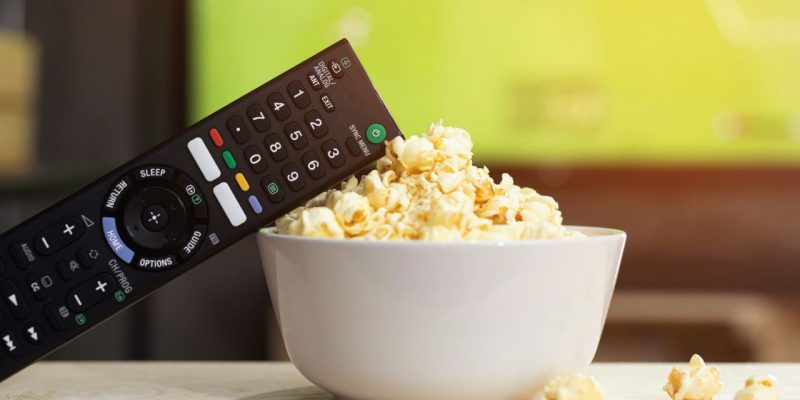
When an Android TV remote control stops working, it can prevent access to menus, settings, and navigation within apps. This type of failure can result from several causes: insufficient power, loss of connection, software issue, or hardware failure. Before considering a replacement, there are several concrete solutions to diagnose and restore communication between the remote and the TV or Android TV box.
Defective power supply: check the batteries and contacts
The first step is to assess the condition of the batteries, often the cause of the malfunction. A voltage that is too low can prevent the signal from being transmitted correctly, even if an indicator light still comes on.
- Systematically replace the batteries with a new set, preferably alkaline.
- Avoid using partially used batteries or those from another device.
- Ensure the polarities are correctly respected.
The metal contacts in the battery compartment can also be the cause. Oxidation or dirt affects the connection:
- Clean the terminals with a cotton swab slightly moistened with 90° alcohol.
- Dry thoroughly before inserting new batteries.
This simple check can reactivate a remote control without technical intervention.
Infrared or Bluetooth connection: test communication with the device
Infrared remote control: detect an active signal
If your remote uses an infrared (IR) signal, you can quickly check that it works:
- Open your smartphone’s camera.
- Point the remote at the lens.
- Press a button. If a flashing light is visible on the screen, the IR signal is being emitted.
If there is no light, it is likely that the remote is out of service or the batteries are too weak.
Loss of connection on Bluetooth remotes
Many recent remotes, especially for boxes like Nvidia Shield or Google TV televisions, use Bluetooth. In case of failure:
- Restart the TV or unplug it from the power outlet for 30 seconds.
- Bring the remote a few centimeters closer.
- Simultaneously press two buttons defined by the manufacturer (often “Home” and “Back”) for several seconds.
If the pairing process appears on the screen, reconnection is in progress.
If it fails, resetting Bluetooth in the device’s system settings can also restart the pairing.
System issue or unstable update: restart and optimize the device
A remote control may seem defective when it is the Android TV interface itself that is no longer responding. Memory overload or a recently improperly applied update can block command reception.
- Completely unplug the device for at least 30 seconds.
- Plug it back in and wait for the system to fully restart.
- Try the remote again.
If menu access is possible, check for a system update in the settings. Some versions fix errors affecting connected devices.
Remote still inactive? Use your smartphone as an alternative
While waiting to resolve the issue or replace the accessory, it is possible to control the Android TV with a smartphone using the Google TV app:
- Download the app on Android or iOS.
- Connect the smartphone to the same Wi-Fi network as the television.
- Launch the app, select the detected device, and access a touch control interface.
This solution allows you to navigate menus, enter text, or initiate a Bluetooth reconnection.
Remote completely out of order: what replacement options to choose?
If all checks have failed, it may be an irreversible hardware problem. In this case, two options are possible.
Buy an original remote control
Brands like Sony, Xiaomi, TCL, or Nvidia often offer identical or compatible models for sale on their official website or through retailers. These remotes retain all functions (voice, quick access to apps, volume control).
Opt for a compatible universal remote control
Manufacturers like One For All or Logitech sell models compatible with Android TV. Check that the product supports voice functions if you use them. Some universal remotes also allow you to control multiple devices (TV, box, soundbar…).