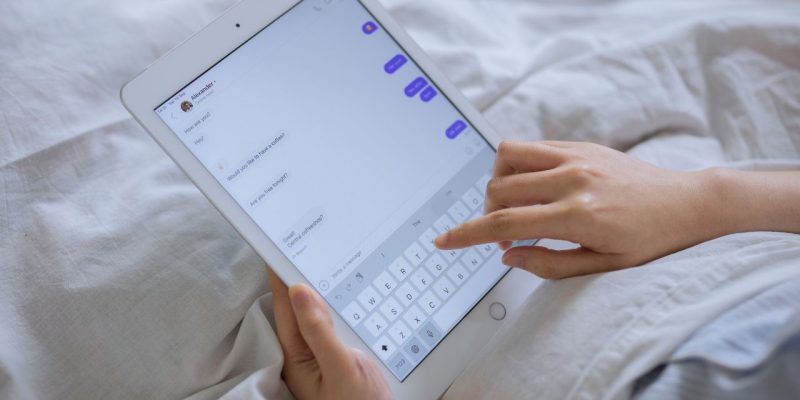
On an Android smartphone or tablet, the virtual keyboard is an essential tool for text input. However, sometimes this keyboard changes in appearance, layout, or functionality, which can complicate typing and daily use.
These changes can be due to several factors: a system update, accidental modification of settings, activation of a specific mode (for example, floating or compact mode), or the installation of a third-party keyboard.
Before trying to return to the normal version, it is important to understand the cause of this change, as this will facilitate the restoration.
Check and reset Android keyboard settings
The first step is to check the keyboard settings through your device’s settings. Depending on the brand and version of Android, access may vary, but it is generally found in:
Settings > System > Language and input > Virtual keyboard > (Name of the keyboard used)
Here, you can check the current configuration: language, theme, keyboard size, key layout, auto-correction, etc.
To return to the default version, most keyboards offer an option to reset settings or restore the keyboard’s factory settings. This allows you to erase customizations, such as themes or special modes.
Disable special modes that modify the keyboard
Android and some keyboard apps offer several alternative modes that change the appearance or behavior:
- Floating mode: the keyboard becomes a movable window that can be moved around.
- Compact mode: the keyboard shrinks, making one-handed typing easier.
- One-handed mode: moving the keyboard to the left or right of the screen.
- Different layout: switching from QWERTY to AZERTY keyboard, or other languages.
These modes can be activated by mistake. To return to the normal version, it is often enough to click on the keyboard options icon (gear wheel or three dots) and disable these modes.
Restart or temporarily change keyboard to test
If resetting the settings is not enough, it may be useful to restart your smartphone. A simple restart often resolves temporary bugs related to the keyboard.
Otherwise, you can also try using an alternative keyboard temporarily, for example, Gboard from Google, or SwiftKey from Microsoft. Installing and activating another keyboard allows you to check if the problem comes from the current keyboard or the system.
To change the keyboard:
Settings > System > Language and input > Virtual keyboard > Manage keyboards
Activate another keyboard, then select it as the default keyboard.
READ ALSO
Uninstall keyboard updates or reinstall the app
In some cases, a keyboard update can cause bugs or an interface change. To return to the original version, it is possible to uninstall updates of the keyboard app if it is a system app.
To do this:
Settings > Apps > (Name of the keyboard) > Three dots > Uninstall updates
Then restart the phone. You can also consider uninstalling and reinstalling the keyboard if it was downloaded via the Play Store.
Clear the keyboard cache and data
Another effective way is to clear the keyboard cache and data. These temporary files can sometimes cause malfunctions.
Settings > Apps > (Name of the keyboard) > Storage > Clear cache and Clear data
Be careful, this will delete customizations, dictionaries, and saved histories, but it often allows you to regain a functional keyboard.