
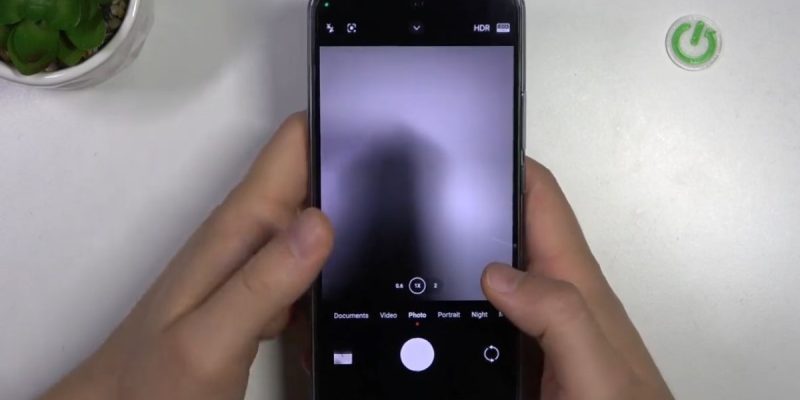
Filming with a smartphone in low-light conditions remains a challenge, even with high-performance sensors like those of the Xiaomi 13T. Grain, motion blur, and shakes can quickly deteriorate the quality of your videos. However, a few adjustments and techniques can achieve a much more stable and professional result, even in dimly lit environments.
The Xiaomi 13T offers advanced video modes and stabilization options that many owners do not fully master.
When low light becomes a challenge for video
Low light directly impacts the sharpness and stability of a video. Even a slight shake is amplified by the sensor’s high sensitivity.
Digital noise and motion blur
Increasing the ISO sensitivity to compensate for the lack of light often produces grain, making details less sharp. Hand movements also become more visible.
Fast movements accentuate the blur
Filming a moving subject in low light can turn a normally sharp shot into a blurry or shaky image. Stabilizing the smartphone then becomes essential.
Extreme conditions
Evenings, concerts, or dimly lit streets: these environments combine low light and moving subjects, two factors that complicate capturing stable videos.
Activate the built-in stabilization of the Xiaomi 13T
The Xiaomi 13T has several stabilization modes suitable for low-light videos.
Electronic mode (EIS)
Electronic stabilization corrects micro-shakes and hand movements. It is effective for static or slightly mobile videos and limits shakes without requiring accessories.
Optical mode (OIS)
For more pronounced movements, OIS reduces blur and allows for longer filming without loss of sharpness. The Xiaomi 13T often combines OIS and EIS for optimized rendering.
Settings to adjust
Activating stabilization in the video settings and choosing an appropriate resolution (1080p or 4K depending on the light level) helps reduce noise while maintaining fluidity.
Use a support to avoid shakes
Even the best stabilization does not compensate for excessive hand movements.
Tripods and mini-tripods
A simple tripod stabilizes the smartphone and offers fixed angles, significantly reducing vibrations.
Gimbals and motorized stabilizers
These accessories allow for smooth movements and compensate for shakes on multiple axes. Ideal for moving scenes or extended shots.
Improvised supports
In the absence of equipment, placing the smartphone on a stable surface or against a solid object can limit the blur caused by hands.
Optimize video settings for low light
Some settings strongly influence the stability and quality of night videos.
Limit the ISO
Increasing the ISO can make the video bright but introduces noise and accentuates the effect of shakes. It’s better to stick to a moderate value and compensate with other settings.
Exposure time and shutter speed
Reducing the shutter speed to capture more light increases the risk of blur on fast movements. Finding the right compromise is essential.
Video night mode
The Xiaomi 13T offers a specific mode for dimly lit scenes. It automatically adjusts sensitivity and stabilization for sharper videos.
Shooting techniques to limit shakes
The way you hold and move the smartphone plays a major role.
Hold the smartphone with both hands
Stabilizing the device with both hands and bringing the elbows close to the body reduces vibrations.
Move slowly and smoothly
Avoid sudden movements or quick rotations. Slow and steady movements allow the built-in stabilization to better compensate.
Use short shots and multiple angles
Filming in short sequences rather than one long take helps limit the effects of shaking and makes it easier to correct the rendering in post-production.
Utilize available light to improve stability
Even with good stabilization, light remains a key element.
Complementary light sources
Using LED lamps, flashlights, or auxiliary lighting can reduce the need for a high ISO and improve sharpness.
Orientation relative to the light
Filming with the light source behind the smartphone or laterally improves detail capture and reduces noise.
Avoid overly dark areas
In very dimly lit environments, it’s better to reframe or slightly change the angle to include more ambient light.
Post-processing and additional stabilization
Even after filming, it’s possible to improve stability and sharpness.
Editing applications with stabilization
Software like Adobe Premiere Rush or CapCut offers video stabilization options to correct remaining shakes.
Noise reduction and brightness adjustment
Correcting grain, slightly increasing exposure, and adjusting contrast improves the final quality of videos shot in low light.
Cutting and selecting the best sequences
In post-production, isolating the most stable shots allows for creating a smooth and professional montage.





